February 16, 2012

Accessing Non-accessible Parameter Data

In almost all my Revit MEP classes, when building Schedules/Tags, often the desired Parameter value is sitting there staring us in the face, but we cannot access that data, such as: Elevation -and- the secondary elevation value: Offset.  In my reading of other blogs out there, I ran across this article on RevitOpEd:
who in turn references:

The Whitefeet folks (well...'fella' I should say, Mario Guttman) has provided for PUBLIC consumption some Revit utilities (I like to call these types of addins: Revit Express Tools) that you may find very useful.  Particularly the Parameter Tools that will allow you to access and then assign those outta-reach parameter values to your designated parameter.  It's pretty cool and mega-thanks to Whitefeet for developing and then giving them away.

This is just a heads-up post, you can learn how to download and use the utilities from the Whitefeet website.


Just the Whitefeet cat alone would win me over to Mario's utilities
dennis

AutoCAD - the best tool for design?

"I have a new project starting up and need X seats of AutoCAD"

As an Autodesk partner, we hear this almost every day. While a great start to the conversation, using AutoCAD in a manufacturing design environment today is just one small part of the equation.

Using construction as an analogy, you could certainly drive nails with a hammer, and the hammer is a proven, reliable implement; but as tool technology progressed, those builders who preferred to stay profitable (and keep their business) moved up to nail guns to maximize efficiency and improve productivity. And while there will always be use for the hammer, it isn't the primary tool anymore.

Whether you're building furniture, machinery, consumer products or doing space optimization in today's competitive market, if your tool of choice is AutoCAD, Iit's time to take a look in the Autodesk tool shop. With the rapid innovation of design technology, today's AutoCAD is the equivalent of a hammer: a well known and widely used tool. Granted, we in the reseller channel absolutely believe that our "hammer" is smoother, more contoured and will pound the (metaphorical) design nail better than other programs, but Autodesk has a nail gun too - and it's called Inventor. And just as the nail gun replaced the hammer, Inventor brings a more efficient, data driven, photo realistic process that just may trump AutoCAD as the primary tool in your company's workflow...

Design is just one part of your product lifecycle, and our team excels at helping clients move beyond 2D drafting into a more automated, data driven 3D prototyping environment.

In a world replete with 3D technology to communicate design intent, here's the challenge that I'm posing to our clients this year -

Do you really believe you can win more business with a hammer when your competitors are using a nail gun?

February 13, 2012

Revit to Navisworks – Slicing vs. Level Properties

In previous posts on this blog, we have reviewed two methods that can be used to slice up a Revit model by Level designation: 
1) Using the built-in “3D View For Levels”  and 
2) Using the “DPR Slicer”.  


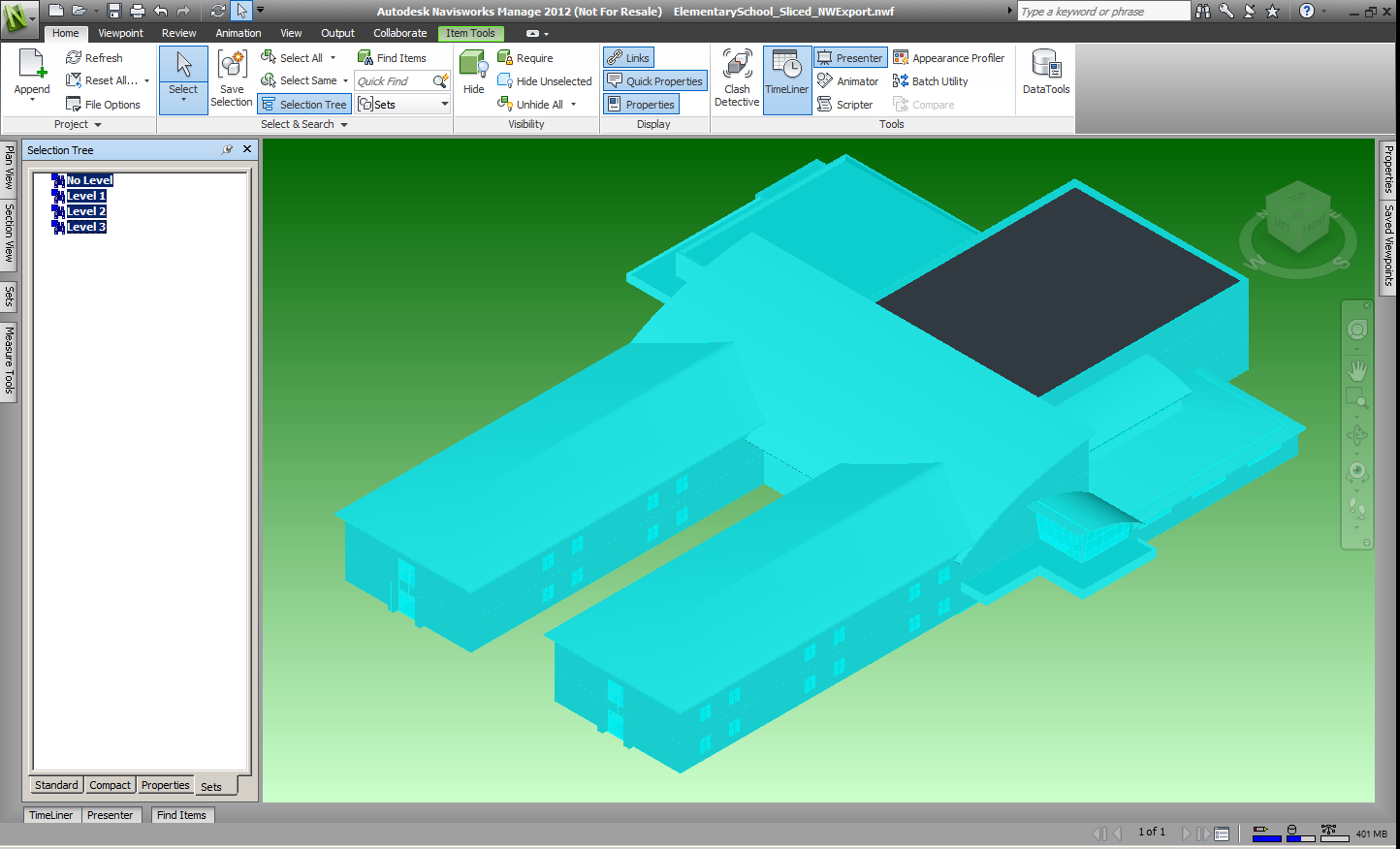
One reason for slicing up the model is for Navisworks, particularly the Timeliner.  Timeliner provides the means to build an animation of the building process.  Revit does OFTEN apply Level property information to objects as they are placed.  However, too often the Level designation information is assigned as <No Level> -or- there can be no level designation –or- if an object spans multiple floors, it will get associated to just the one floor from where the object ‘started’.
The following slides show a model where Filters/Search Sets were generated based on the properties Level designations.

Highlighting Level 1 showing spanning to multiple floors


Highlighting shows those objects who are designated at Level 2


Highlights are Level 3 designated


Highlights of all SearchSets reveals a roof still to be assigned


Now take a look at how the Navisworks Layers designate the objects based on the slicing from the Revit model.  Each slide below shows how the model is sliced up at the physical level designation.  For clarification of the view, I did setup the floor plans that generated the 3D View Section Box to put the second floor slab within the Level 2 slice by changing the View Range accordingly.  Specifically, the top of the Level 1 slice is <-6.5”> below Level 2, and the Level 2 slice includes the slab by having the offset of the base at <-6.5”>.
The highlight clearly shows a line of separation of the Level 1 slice only 


Level 2 Slice


Level 3 Slice


Depending on the level of detail you wish to show in Timeliner, you still may have work to do, breaking up the model with Search Sets and Selection Sets.  However, for a quick animation, the slicing method produces an easy generation of the Task List in Timeliner, by using the Auto-Add Tasks \ For Every Topmost Layer –or- For Every Topmost Item.


Now compare the two resulting animations:
Quick Timeliner Animation using Slicing


Quick Timeliner Animation using Filters/SearchSets

 dennis

February 9, 2012

Plant 3D - Rolled Offsets

I have had a few clients ask: "What is the best way to route a Rolled Offset?" As always, there are several methods to this, but here is the one that I feel works best.

First, start with creating or selecting a construction layer or a no-plot layer. This is just a habit of mine and good practice so that you don't get any unwanted lines showing up on your prints.


Next step is selecting the LINE command... (yes, the standard AutoCAD LINE command) and route your line from the nozzle of a tank or where ever you want to route your line from. Be sure to select the NODE of the nozzle so that some magic can happen later.


Continue the LINE command and draw your 3 sides of a rolled offset box (North/South, East/West, and Vertical Directions). In the example below, I drew my line in the North direction 5' then in the + Z direction 3' and then in the East direction 10'. The other grey lines of the box are there to help you visualize the rolled offset. I then used the line command to connet the opposite corners of the rolled offset (see red arrow)


Lastly, use the LINE TO PIPE (_PLANTCONVERTLINETOPIPE) command to change the AutoCAD lines into Pipe. Make sure you have set the size, spec and line number.


Go to the properties of one of the elbows created to see the Cutback Angle automatically assigned.


February 6, 2012

Adding stripes to walls in Revit


A recent question came up on how to add stripes to walls in Revit. One option is to use the “Face Split” and “Paint” tool located in the Modify tab Geometry panel. See image below.

Select the wall you want to split, then go to the Modify Walls tab, Geometry panel and choose the Split Face tool. Reselect the wall you want to split. Then draw the line or shapes you want to split up the surface of the wall.

Once done select the green check to finish. The wall is now split apart and ready for you to apply different materials to the wall. The split tool only changes the surface not all the way thru the wall, the wall is still one entity.

Now we can use the “Paint” tool. Select the paint tool , which is located below the previous tool we used. This will open a dialog box for materials.

Choose a desired finish to “Paint” the surface. You can scroll thru the preset materials or use the search at the top of the materials dialog box.

After the materials have been appled, you can view them in a shaded view, or realistic view.

If you need to remove a painted surface yo ucan do so by selecting the Paint tool, and explanding the dropdown next to it, revealing the “Remove Paint” option. Once chosen, select the portion of the wall you would like to remove the paint from.

February 3, 2012

Revit Plywood Fill Pattern

I've researched my options for representing various fill patterns in Revit previously. One has frustrated many users for years, plywood. I manually created a vertical plywood pattern (I've included the code below for your use) and have offered it to my clients. Even though I can create a custom fill pattern as a model pattern in Revit, I am limited to the linework density it can interpret. I hope Autodesk will give a little more latitude in a future release.

Until then this is my breakdown of Drafting vs. Model fill patterns to represent "plywood". I will add that this pattern is usually used for details only, at scales no smaller than 1"=1'-0". It would turn to solid black in other scales.

The reason I created a "vertical plywood" pattern file is because drafting fill patterns do not orient with the object when it is rotated other than the direction it was created in. The other downside to drafting patterns is they are the same size no matter the scale. They are meant to be representational.


Model patterns, on the other hand, will rotate to orient with the object. The other advantage is that the pattern will scale the same no matter the view scale. It can represent layers of material thickness. So it's relative size to the object remains the same and looks different from one scale to the next. The downside of this model pattern is the density Revit can import at. I found no matter how large or small I made the pattern file, I had to increase the import scale when creating the fill in Revit. It ends up being larger than I wanted.
The options break down to two, either you have patterns for different orientations for use as drafting fill patterns or you use a model pattern and live with the limitations on the size of the pattern.

Here is the .PAT file code for the Vertical Plywood pattern I created and used above. Just create a new text file using Notepad, save with a .PAT extension and then copy and paste the lines below into it. Now you have the pattern file for import into Revit.

;;
;; Created by: John R. Ade
;; Created on: 11/12/2010

;;

*plywood-vertical,Plywood

;%TYPE=DRAFTING

90, 0,0, 0,-.1, 1.0

45, 0,0, .0707106781,.0707106781, .1414213562,-.1414213562
135, 0,0, -.0707106781,.0707106781, .1414213562,-.1414213562

I hope you find this useful and will share with your colleques.

John R. Ade, AIA

February 1, 2012

Green Design Series Part 1: The Human Condition

I have recently been asked to present to the USGBC in Mississippi about how BIM is/can be a catalyst for green design. My research got me thinking about green design as a whole.  Then I thought that a blog series would be a good way to share my research and some thoughts on the topic.  This is a way to look at the good, the bad, and the ugly of green design, BIM, technology; and some realizations about human nature as we try to become better.

I was trained in sustainable design during my college days.  Things have changed since then.  We have BIM, Green Building Studio, DOE Software, IES VE and a host of other applications that take the guesswork and long hours of manual analysis out of the equation.  Design has changed since then as well.  We have started experimenting with new forms as said technology has enabled us to do so.  Whole industries have grown up around "green technology" to aid in making our buildings more efficient, smarter, and carbon neutral.

But I have questions:
  • Can we believe, or even understand, the analysis?  
  • How far do we have to model to be accurate?  
  • Are new building forms really supporting the idea of green?  
  • Are all of these technologies truly beneficial, cost effective?  
  • How and when?  
I also feel that something may be missing: People's comprehension of green strategy and an innate understanding of themselves.  I have all of these great tools and technologies at my fingertips to analyze a building's design, but do I really know, without having a solid background in green strategy, what those numbers and graphics are telling me?  We are assuming that because we can model a building pretty well then we can model it appropriately to be analyzed and then make good decisions based on it.  We are sometimes assuming that throwing thousands of dollars of technology on a building makes it better, greener, when a simpler, cheaper solution may have solved the problem in a more succinct manner.  That's what I learned in college:  Simple, low-tech, thoughtful solutions based on a basic understanding of the environment that the building was going to inhabit.  We didn't have the analysis tools, and I'm glad they're here now, but let's make sure that they don't replace the process they are meant to enhance.  I will discuss how great these applications are in a future post, but we'll start the discussion with something that technology can't change, but much of it has been developed to combat: Ourselves.